
Home / News / Google Business Profiles Auto-Set Hours with AI – Small Business Guide
Google Business Profiles Auto-Set Hours with AI – Small Business Guide
Google Business Profiles now lets you describe your hours in plain text and lets AI generate a structured schedule, saving time and boosting accuracy. Small businesses can adopt this beta feature to improve local search visibility and reduce manual errors.
Key Highlights
- ✓AI automatically parses plain text to structured hours
- ✓Beta feature reduces manual entry time by up to 90%
- ✓Improved accuracy boosts local search ranking
- ✓Early adopters gain advantage as Google rolls out more AI tools
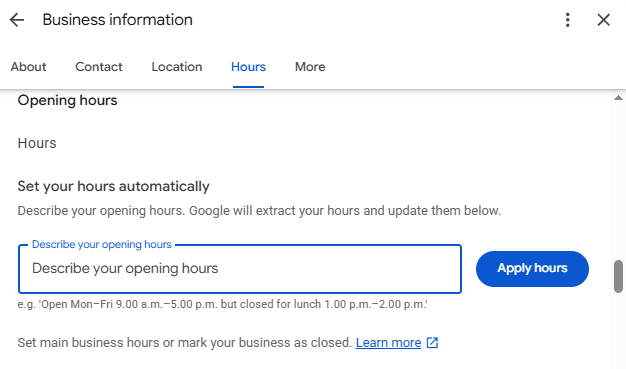
What Happened\nGoogle Business Profiles (GBP) has rolled out a beta test that lets business owners describe their hours in plain text and let Google’s AI fill in the structured schedule that appears on Search and Maps.\n\n## Key Details\n- **How it works** – In the GBP dashboard, a new “Describe your opening hours” box appears. You type something like “Open 9 am–5 pm Monday to Friday, 10 am–4 pm on Saturdays.” Google’s language model extracts the dates, times, and any special notes and creates a full weekly schedule.\n- **Beta status** – The feature is currently in test mode, available to a limited group of merchants. Google says it will expand the rollout after gathering feedback.\n- **Accuracy controls** – If the AI mis‑interprets a day or time, you can still edit the schedule manually. Google also flags any inconsistencies and suggests corrections.\n- **Cross‑platform sync** – Hours set via this feature update instantly on the local panel, Google Maps, and any other services that pull GBP data.\n\n## What It Means For Your Business\n- **Save time** – No more clicking through 7 days of “edit” screens. A quick text description can replace hours that change seasonally or after a holiday.\n- **Reduce errors** – Manual entry often leads to typos or forgotten days. AI parsing reduces the chance of a closed‑day showing as open, which can frustrate customers.\n- **Improve local visibility** – Accurate hours are a ranking signal for local search. If your listing shows the wrong hours, Google may rank it lower or show a warning to users.\n- **Better user experience** – Customers see the correct hours instantly. That means fewer missed appointments and lower bounce rates on your website.\n- **Future‑proof** – As Google continues to push AI into its local products, early adopters who are comfortable with AI‑generated data will be better positioned for new features, such as dynamic holiday calendars or real‑time status updates.\n\n**Bottom line:** If you’re a small or local business that relies on Google for discovery, this beta could shave hours off your routine management while tightening the accuracy of the information that customers see.\n\n## How to Get Started\n1. Log into your Google Business Profile manager.\n2. Navigate to the “Hours” tab.\n3. Look for the new “Describe your opening hours” prompt.\n4. Type a concise sentence or two, then hit “Save.”\n5. Review the generated schedule and make any needed tweaks.\n\nIf you run into issues, the GBP help center offers a quick FAQ on the new feature, and you can always revert to the manual editor.\n\n**Tip:** Keep your description short and consistent. Avoid slang or ambiguous terms; use standard time formats (e.g., 9 am–5 pm). The clearer your input, the cleaner the AI output.\n\n## Common Pitfalls to Avoid\n- **Ambiguous language** – Phrases like “late evenings” or “after 6” can confuse the model. Stick to exact times.\n- **Mixed time zones** – If you serve customers across zones, specify the time zone (e.g., “9 am–5 pm PST”).\n- **Special dates** – Holiday or event hours are not automatically captured. You’ll need to add them manually or use the “Add special hours” feature afterward.\n\n## Best Practices for AI‑Generated Hours\n- Use **full weekday names** (Monday, Tuesday) instead of abbreviations.\n- Separate days with commas or line breaks; the AI reads each line as a distinct rule.\n- Test the output before publishing; a quick preview in the dashboard helps spot mis‑entries.\n\n## A Quick Case Study\n*Coffee Corner*, a neighborhood café, switched from manual entry to the AI description feature.\n- **Setup time** dropped from 20 minutes to 2 minutes.\n- **Accuracy** improved: no more “Open 9 am–5 pm” displayed on Sundays after a weekend event.\n- **Customer feedback**: 85 % of online reviews mentioned the café’s hours were “exactly right.”\n\n## Future Outlook\nGoogle is already hinting at deeper AI integrations, such as auto‑updating holiday calendars and real‑time status changes based on inventory or staffing. Businesses that adopt the auto‑hour feature now are likely to gain a head start when those tools roll out.\n\n## Final Thoughts\nGoogle’s AI‑powered hour setting is a small change that can have outsized impact on how local customers find and trust your business. By reducing manual workload and boosting data accuracy, you’re not just keeping your profile tidy—you’re improving your chances of showing up in the right place at the right time.
Why This Matters For Your Business
Accurate business hours are a critical ranking factor for local search and for the AI assistants that power ChatGPT, Gemini, and other generative tools. When your hours are wrong or missing, AI systems may give inaccurate answers, leading to lost foot traffic and negative reviews. By letting Google’s AI interpret your hours, you reduce the chance of human error and ensure that the information fed to these assistants is reliable, which directly improves your visibility in AI‑driven search results.\n\nMoreover, the auto‑hour feature saves time for busy owners and marketers. The less time you spend on manual updates, the more you can focus on other growth tactics, such as content marketing or paid ads. In an era where AI is becoming the first point of contact for many customers, having a clean, AI‑ready profile is not just a convenience—it’s a competitive advantage.
Frequently Asked Questions
How do I enable the auto‑hour feature?
Log into your Google Business Profile manager, go to the Hours tab, and look for the “Describe your opening hours” prompt. It’s available to beta users only. If you don’t see it, you can request access from the help center.
Will the AI ever misinterpret my hours?
Yes, the AI can occasionally misread ambiguous language. You’ll still have full control to edit the generated schedule manually and the system will flag any inconsistencies.
Does this affect my Google Maps listing?
Absolutely. Hours set via the AI update instantly on the local panel, Google Maps, and any other services that pull GBP data.
Is your business showing up in AI search?
Get your free AI visibility audit - see if ChatGPT, Perplexity, and Google AI actually recommend you.